
DASILVA SAT | ENIGMA2 GUIDE
How to Install and Use X-STREAMITY on OpenPLi Enigma2
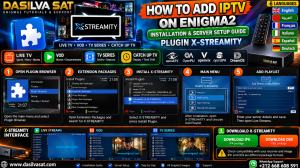
A step-by-step guide to plugin installation, opening X-STREAMITY, adding a playlist and browsing available content.
Visit the community to discuss Enigma2 receivers, plugins and configuration questions.
https://t.me/forums_enigma2Step 1 — Download the Plugin
Download the package you intend to use and check that it is compatible with your receiver and OpenPLi image before installing it.
X-STREAMITY Package Links
Step 2 — Install the Package
Prepare the Package
Download the package and transfer it to your receiver using a method supported by your setup.
Install the Plugin
Use an installation method compatible with your OpenPLi image and the package format.
Restart if Required
If the installation process requests it, restart the Enigma2 graphical interface before opening the plugin.
Step 3 — X-STREAMITY Screenshots: First Group
The following images appear in the same order as the first group of image links supplied for this tutorial.
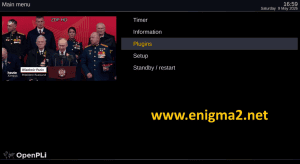
Screenshot 1 — X-STREAMITY interface
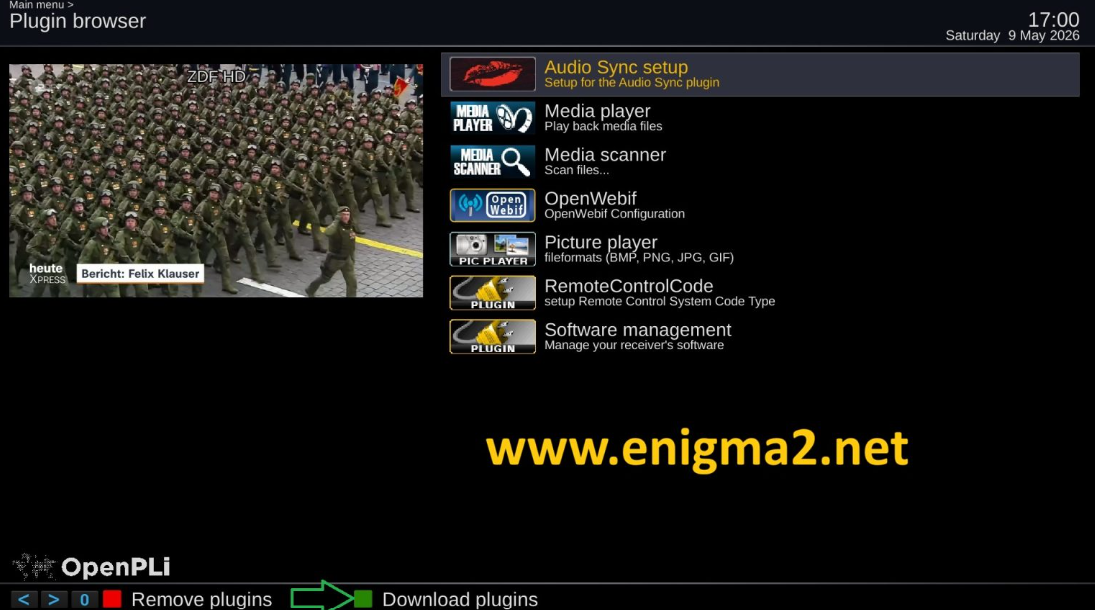
Screenshot 2 — Plugin screen
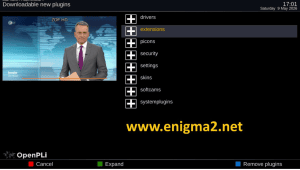
Screenshot 3 — Interface example
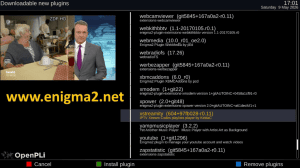
Screenshot 4 — Interface example
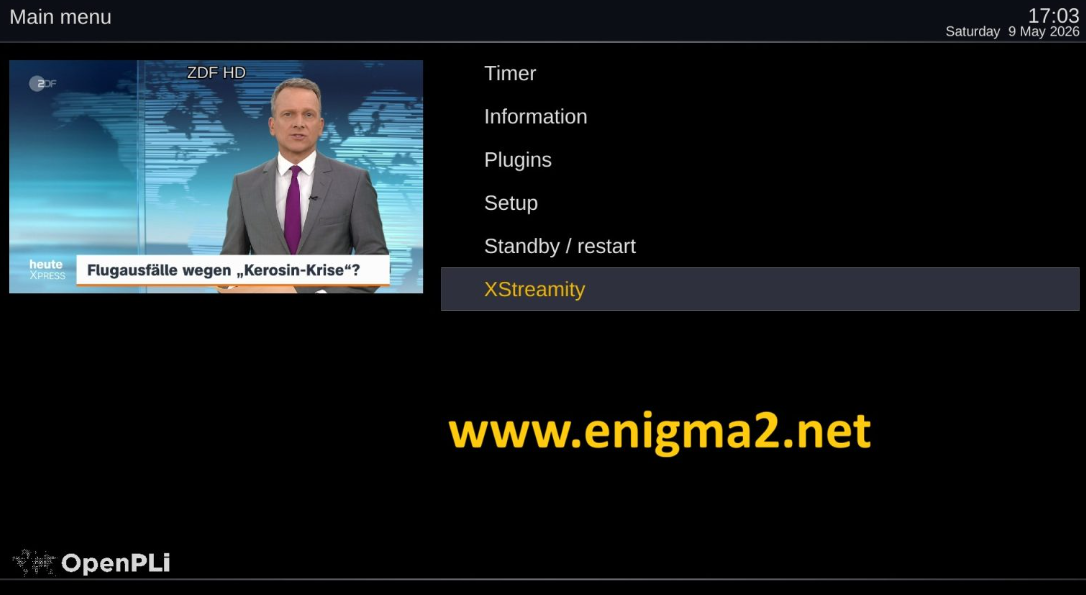
Screenshot 5 — Interface example
Step 4 — Open X-STREAMITY
After installation, look for X-STREAMITY in the plugin menu available in your receiver's OpenPLi image.
- Open the receiver menu.
- Locate the Plugins or Plugin Browser section.
- Look for X-STREAMITY in the installed plugin list.
- Select the plugin to open it.
Menu names and navigation can vary depending on the OpenPLi version and receiver configuration.
Step 5 — Plugin Menus and Screens: Second Group
These images follow the second group of links supplied for this article. They are presented in the original order.
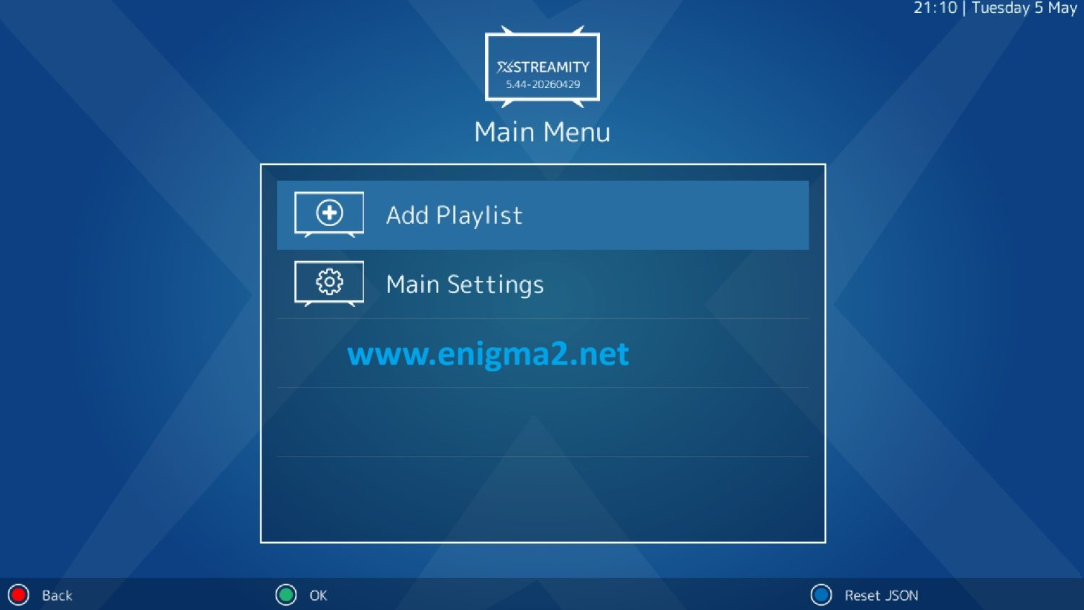
Screenshot 6 — Plugin interface
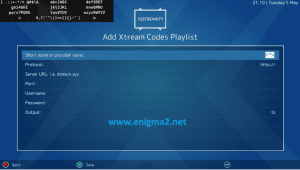
Screenshot 7 — Plugin screen
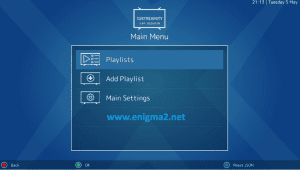
Screenshot 8 — Main menu example
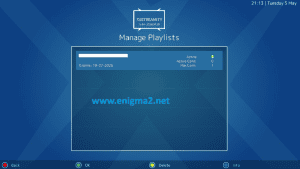
Screenshot 9 — Playlist menu example
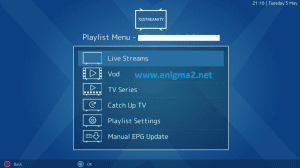
Screenshot 10 — Content menu example
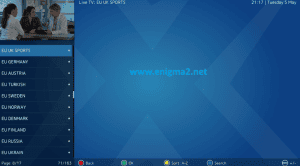
Screenshot 11 — Content screen example

Screenshot 12 — X-STREAMITY screen
Step 6 — Add a Playlist
If your installed version offers an Add Playlist option, select it and enter the connection details supplied by your authorized service provider.
- Open the playlist management section.
- Select the option to add a playlist, if available.
- Enter the required server address and account details.
- Review the information and save it.
Step 7 — Browse Available Content
Once a valid playlist has loaded, the available categories depend on the playlist, plugin version and service configuration.
Live Streams
Browse live channels included in the playlist.
VOD
Browse available video-on-demand content.
TV Series
Browse series and episodes if provided by the service.
Catch-up TV
Use catch-up playback only when supported by the service.
Troubleshooting
X-STREAMITY does not appear in the plugin list
Check whether installation completed successfully and whether the package is compatible with your OpenPLi image.
The playlist does not load
Check the server address, account details, internet connection and status of the playlist service.
Playback does not start
Confirm that the selected stream is available and check the network connection and receiver compatibility.
The package installation fails
Verify the package type, receiver architecture and required dependencies for your OpenPLi image.
Useful Links
⚙️ Setup Guide
Frequently Asked Questions
Is this guide for OpenPLi?
The guide is intended for OpenPLi Enigma2 receivers. Menu names and installation methods may differ by release.
Does installing X-STREAMITY provide a playlist?
No. Installing the plugin and obtaining playlist access are separate steps.
Are the download links guaranteed to work?
No. The links are external and may expire. Verify the package before installing it.