
How to Install the X-STREAMITY Plugin on OpenATV Enigma2
Complete Installation • Playlist Setup • Live TV • VOD • Troubleshooting
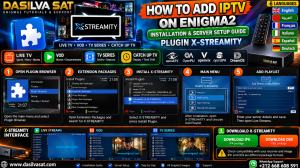
Welcome to the DASILVA SAT tutorial. This guide explains how to install the X-STREAMITY plugin on a compatible OpenATV Enigma2 receiver, add your playlist and access the features available through your authorized service.
Follow the five steps below. Menus and package availability can differ according to the OpenATV version, receiver architecture and installed software feeds.
Join the community to discuss Enigma2 configuration and share troubleshooting advice. Keep passwords and private playlist credentials out of public posts.
Installation Guides WhatsApp Support
What You Need Before Installation
- An Enigma2 receiver running a compatible OpenATV image.
- A working internet connection and sufficient free storage.
- A compatible X-STREAMITY package or supported software feed.
- A valid playlist and credentials from a provider you are authorized to use.
Step-by-Step X-STREAMITY Setup
1Open the Plugin Browser
Press Menu on your remote control and open Plugin Browser. Depending on the image and skin, the plugin menu may be located in a different place.
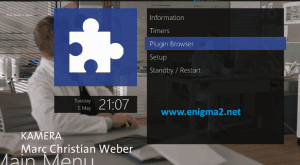
If the menu is different on your receiver, check the documentation for your installed OpenATV version.
2Open Extension Packages
In the Plugin Browser, choose the installation option and look for Extensions or Extension Packages. The exact menu wording can vary between software versions.
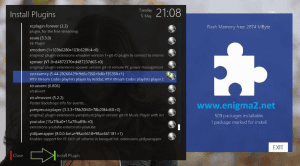

Search the available packages for X-STREAMITY. If it is not listed, do not select an unrelated plugin; first verify that the image feed supports it.
3Install X-STREAMITY
If a compatible package is available, select X-STREAMITY and follow the on-screen installation prompts. Wait until the process completes.
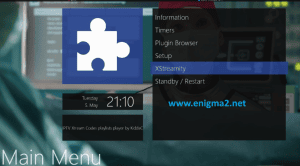
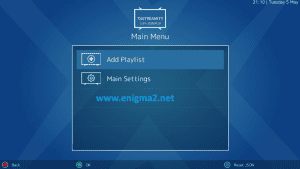
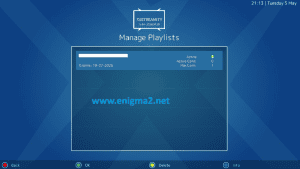
If installation fails, record the error message and check internet access, free storage, dependencies and package compatibility before trying again.
4Launch X-STREAMITY
Return to the main menu or Plugin Browser and launch X-STREAMITY. If it does not appear after installation, follow the restart instructions recommended for your image.
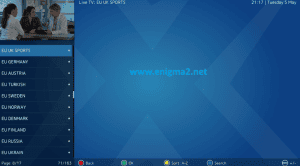
Your menu may look different because of your skin, OpenATV version or plugin version.
5Add Your Playlist
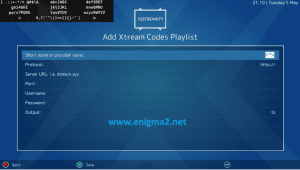
Open the playlist menu and select Add Playlist. Enter the exact server information provided by your authorized service, then save the configuration.
Playlist fields explained
- Short name: A label to identify the playlist.
- Protocol: Choose the protocol supplied by your provider.
- Server URL: Enter the exact server address.
- Port: Enter the port if your provider requires it.
- Username: Enter the supplied username.
- Password: Enter the supplied password.
- Output: Select a supported output format.
Open Live TV, VOD and TV Series
After the playlist loads, the available categories may include Live Streams, VOD, TV Series, Catch Up TV, Playlist Settings and Manual EPG Update. The options depend on the plugin version and the services supplied by your provider.
Troubleshooting
X-STREAMITY is missing from the menu
- Confirm that the package installation completed successfully.
- Check the package type and receiver architecture.
- Follow the image's instructions for refreshing or restarting the interface.
The playlist will not load
- Verify the server URL and port with your provider.
- Check the username, password and subscription status.
- Confirm the receiver has internet access.
EPG information is missing
- Check whether your provider supplies EPG data.
- Use Manual EPG Update if it is available.
- Check the playlist settings and allow the update to finish.
X-STREAMITY Downloads
These package links were supplied for this guide. Availability can change, and you must verify compatibility before installing.
Read the setup guide
More Enigma2 tutorials
Visit DASILVA SAT
Frequently Asked Questions
Does X-STREAMITY work on every OpenATV receiver?
Not necessarily. Compatibility depends on the OpenATV version, receiver architecture, dependencies and plugin package.
Are IPK and DEB files the same?
No. They are different package formats. Use only the format supported by your installed system.
Does installing the plugin include a playlist?
No. The plugin is a player interface. You need a compatible playlist or service that you are authorized to access.